
FORMULASHARE ENTERPRISE / UNLIMITED ONLY
Team sharing rules share records to public groups or queues which represent teams in your Salesforce data model. FormulaShare maintains one group or queue per team record, and manages membership to reflect who belongs to each team.
This page describes the data model requirements for team sharing, the standard teams model included with FormulaShare, and how to configure a mapping to your own custom team data model.
Data Model Requirements
Object and field mappings are summarised in the diagram below:
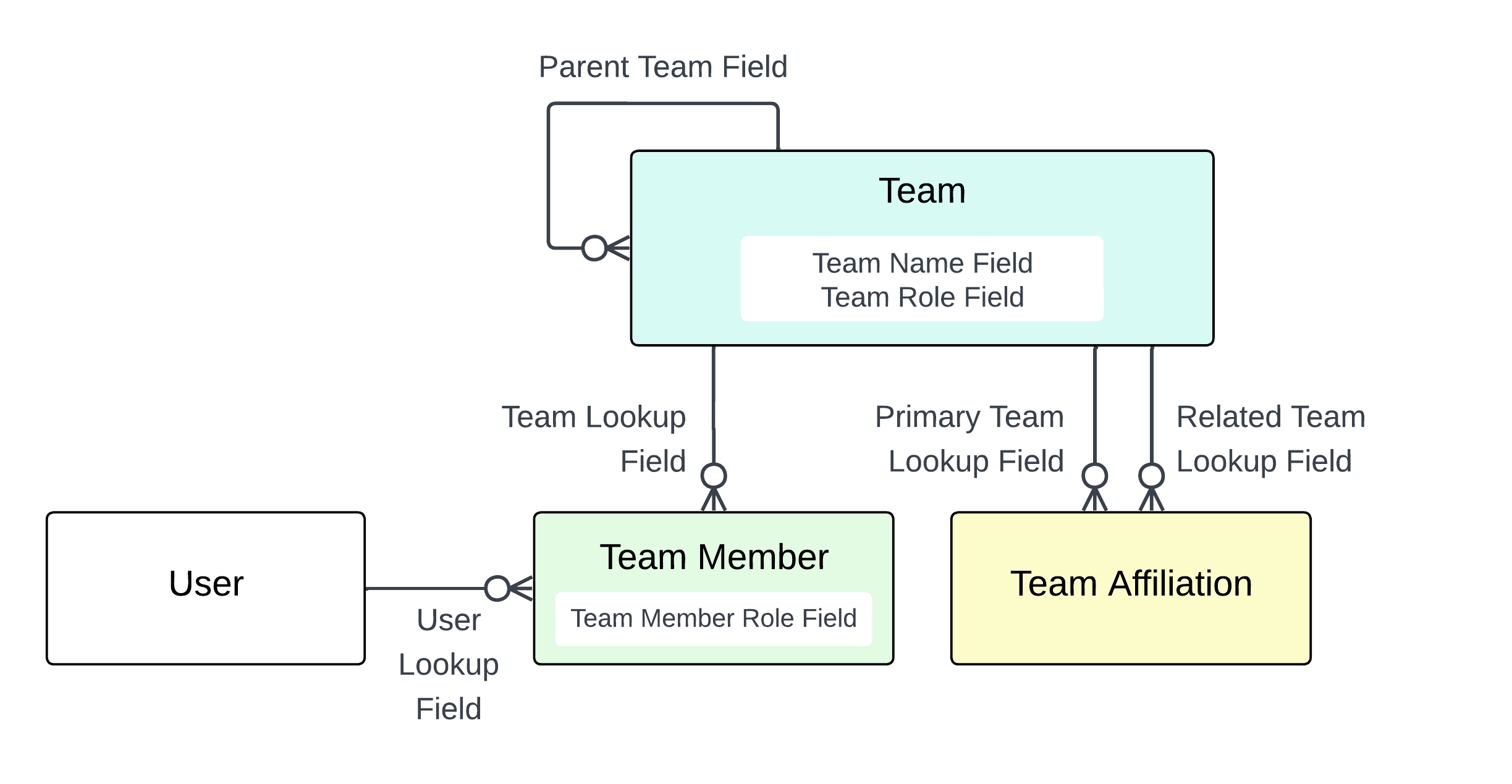
To use team sharing rules, your data model needs the following structure:
Team object - An object with records which correspond to teams. This can be a custom object (e.g. Sales_Team__c), a standard object (e.g. Account), or the FormulaShare Team object included in the app (see below). FormulaShare creates and manages one public group or queue for each record of this object with linked team members or team affiliations.
Team Member object - An object which links users/roles teams, with:
- A lookup to the Team object
- A lookup to the User and/or a field with the name of a Role
FormulaShare reads this object to determine who to include as members of each team's public group or queue.
NB: The Team Member junction object is not required if the Team Mapping is configured with a team-level role field (see Role-Based Membership below).
Shared object field - A field on each object you want to share (or a related object for cross-object rules) which identifies which team should receive access. This field can be either a lookup to the Team object, or a text or formula field with the record id of the team.
Optionally, your model can also include:
Parent Team field - A self-lookup on the team object to support hierarchical team structures. FormulaShare can use this to cascade team membership up or down the hierarchy.
Team Role field - A field with the name of a role which represents the team. If mapped, this role will always be included in the team.
Team Affiliation junction object - An object linking two team records together with two separate lookups. Used to share team membership between associated teams without creating circular group dependencies.
The Standard FormulaShare Teams Data Model
FormulaShare includes a ready-to-use teams data model which you can work with right away without additional configuration:
sdfs__Team__c- The Team object. Records here represent individual teams. Has a Name field used to identify the team, and a Parent Team lookup to model team hierarchies.sdfs__Team_Member__c- The Team Member junction object. Has lookups to Team and User to indicate the user who is part of the team.sdfs__Team_Affiliation__c- The Team Affiliation junction object. Has two lookupssdfs__Primary_Team__candsdfs__Related_Team__cto specify the two teams.
Create records in this structure from the "Teams" tab in FormulaShare Setup:
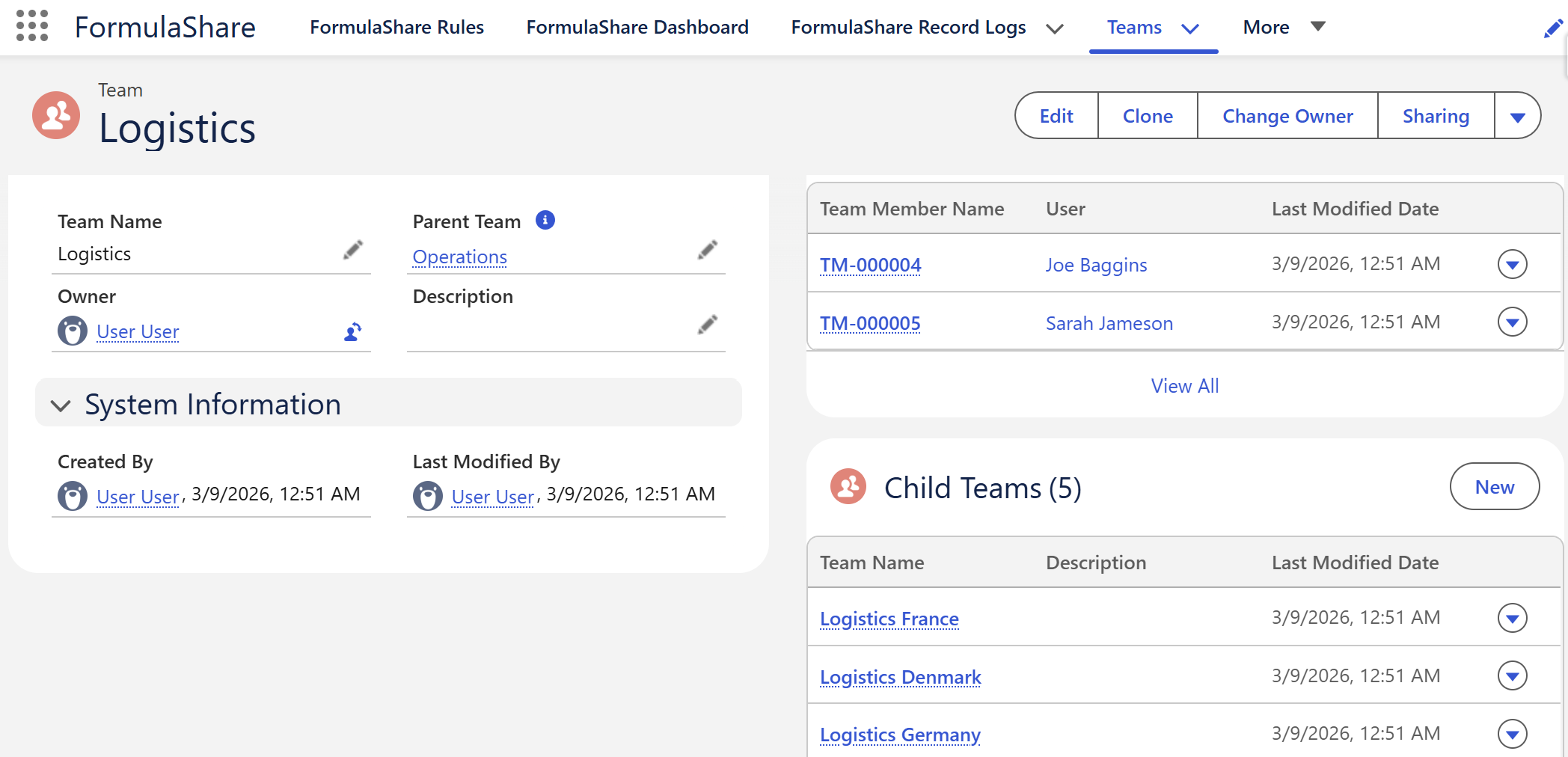
A pre-configured Team Mapping named "FormulaShare Teams" is included which points to these objects. To share records using this data model, create a lookup from your object to sdfs__Team__c and set up a FormulaShare rule with "Teams" selected as the Share With option, pointing to this mapping.
Custom Team Data Models
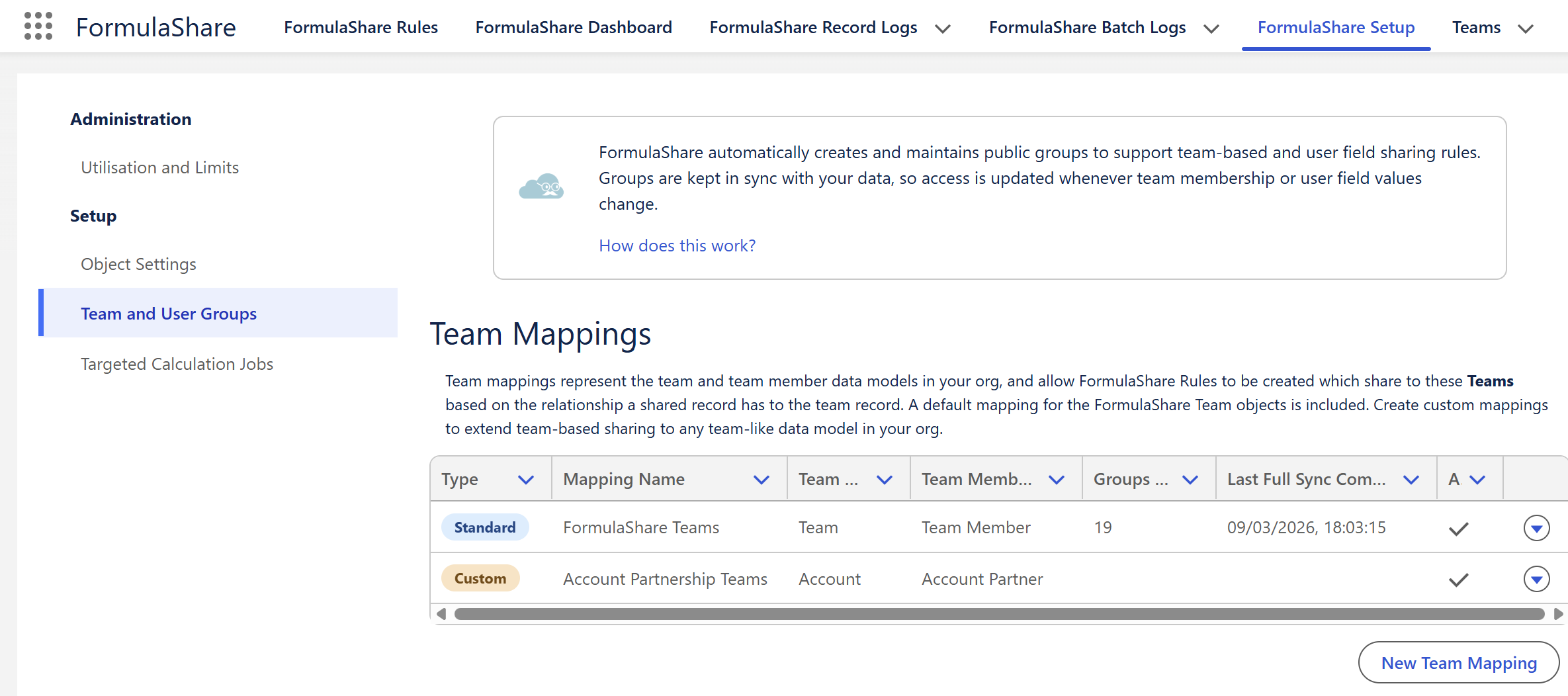
If you have an existing teams data model in your org, you can configure a Team Mapping to tell FormulaShare how to interpret it.
Team Mappings are configured in the Team and User Groups tab within FormulaShare Setup. Each mapping is stored as a record in the FormulaShare_Team_Mapping__mdt custom metadata type.
Team Mapping Fields
When creating or editing a Team Mapping, a configuration page is presented with the sections and fields below:
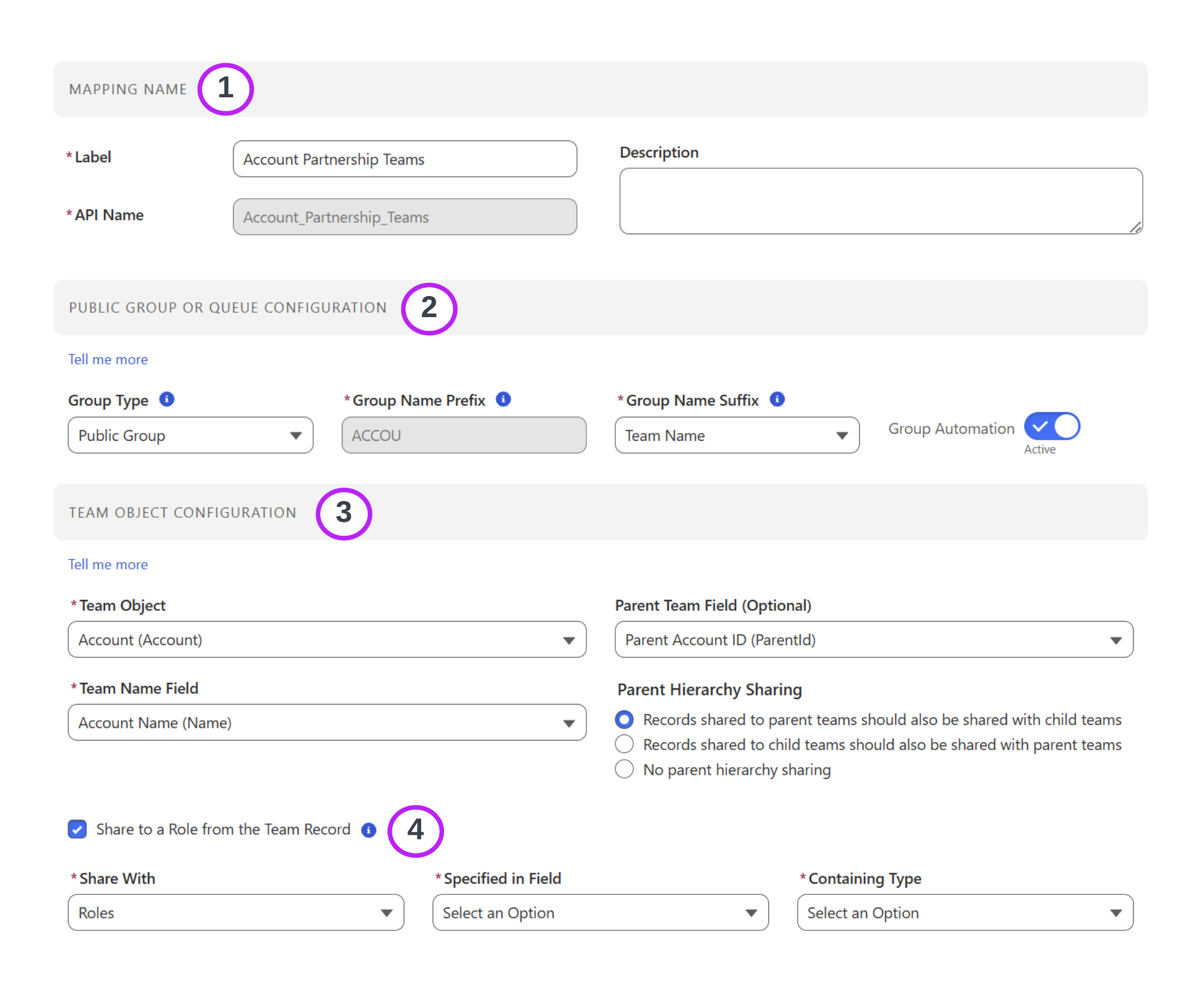
1. Mapping Name
- Label and Developer Name - A name to identify this mapping. The Developer Name is used internally and must be unique.
- Description - An optional description to explain the mapping's purpose.
2. Public Group or Queue Configuration
- Group Type - Whether FormulaShare should create a Public Group or a Queue for each team record. Choose Queue if team members should work from a shared queue view or be targeted by assignment rules.
- Group Name Prefix - A short prefix (letters and numbers only, must start with a letter) prepended to each public group's or queue's Developer Name to distinguish groups created by this mapping from all others. Must be unique across all active team mappings. For example, a prefix of
SALESwith a team named "North" would produce a group Developer Name ofSALES_North. Prefixes cannot be changed after groups have been created. - Group Name Suffix - Controls which team field is used as the second part of the group or queue Developer Name. Options are:
- Id - Uses the Salesforce record Id of the team. Doesn't require a descriptive team name field but produces less readable group names.
- Team Name - Uses the value of the Team Name Field. Produces human-readable group names and is the recommended option for most use cases.
- External ID - Uses the value of the External ID Field. Useful when team names may change but external identifiers are stable.
- Group Automation (or Queue Automation for queues) - Only mappings where this toggle is active will have corresponding public groups or queues created and managed, and only these mappings can be used by sharing rules and trigger processing. To remove groups or queues for a mapping which is no longer required, set this to inactive and initiate or wait for the synchronisation to run to remove groups which were previously created.
- Associate Queue with Objects - When Group Type is Queue, optionally select one or more objects to associate with the queue so it appears in list views and assignment rules for those objects. Leave empty to use the queue for sharing only.
3. Team Object Configuration
- Team Object - The object which holds records representing the team (e.g.
Sales_Team__corAccount). - Team Name Field - A text field on the team object whose value will be used as the suffix of the group's Developer Name when "Team Name" is selected as the Group Name Suffix. Required when Group Name Suffix is set to Team Name.
- External ID Field - An external ID field on the team object, used as the group name suffix when "External ID" is selected. Required when Group Name Suffix is set to External ID.
- Parent Team Field (Optional) - A self-lookup on the team object identifying a parent team. When set, FormulaShare can nest team groups within each other to cascade access up or down the hierarchy.
- Parent Hierarchy Sharing - Controls the direction of group nesting when a parent team field is configured. Shown once a Parent Team Field is selected:
- Records shared to parent teams should also be shared with child teams - The child team's group is nested inside the parent team's group. Sharing a record with a parent team also grants access to all users in child teams below it.
- Records shared to child teams should also be shared with parent teams - The parent team's group is nested inside each child team's group. Sharing a record with a child team also grants access to users in parent teams above it.
- No parent hierarchy sharing - Hierarchy nesting is disabled even if a parent team field is set.
- Conditions (Optional) - A filter condition restricting which team records FormulaShare processes for this mapping. When set, only team records matching the condition will have groups created or maintained. See Conditions below for details.
4. Team-level role (role field on the team object)
Enabled through the checkbox "Share to a Role from the Team Record", which appears within the Team Object Configuration section once a Team Object is selected:
- Share With - Controls whether the role adds only that specific role, the role and its internal subordinates, or the role and all subordinates including portal users. Options:
- Roles - Only the exact role is included.
- Roles and Internal Subordinates - The role and all internal (non-portal) roles below it in the hierarchy.
- Roles, Internal and Portal Subordinates - The role and all subordinates including portal user roles. Only available if Experience Cloud is enabled in the org.
- Specified in Field - A text, picklist, or formula field on the team object whose value contains a Salesforce role identifier. When populated, the role indicated on each team record is included in that team's group.
- Containing Type - Whether the role field contains a role
DeveloperName(Role Name (DeveloperName)) or a SalesforceUserRolerecord Id (Role Id).
When a team-level role is configured without a Team Member Object, the mapping is treated as role-only. The batch job restricts its team queries to records where the role field is non-null, avoiding unnecessary processing of teams with no role value.
Team Member and Team Affiliation Fields
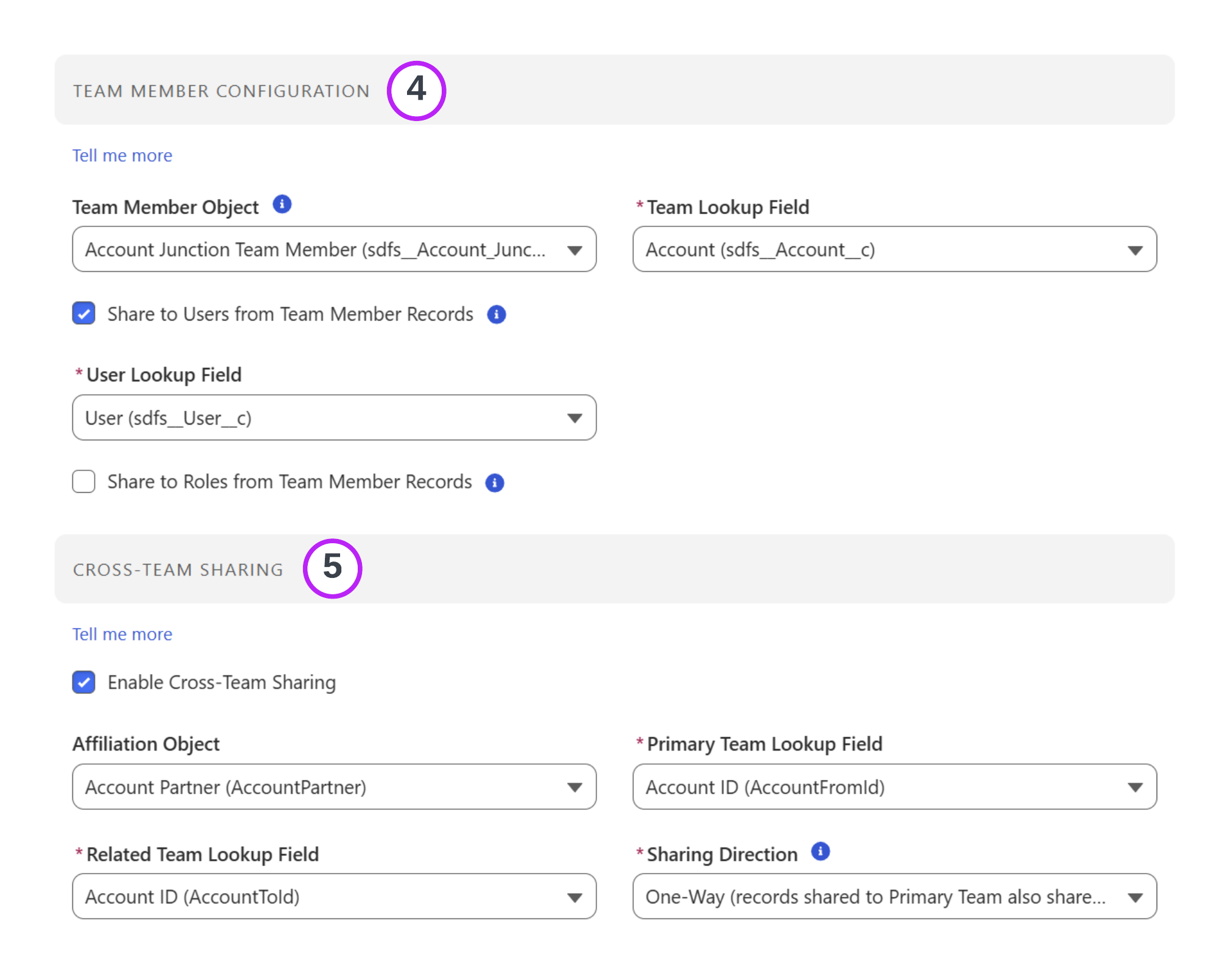
5. Team Member Configuration
- Enable Team Member Sharing - Shown when a team-level role is configured. Uncheck to share only via the team-level role and skip team member configuration entirely.
- Team Member Object - The API name of the junction object connecting users to teams. Optional when a team-level role field is configured.
- Team Lookup Field - The API name of the lookup field on the Team Member object pointing to the team. Shown once a Team Member Object is selected.
Once a Team Member Object is selected, the following sub-options appear:
Share to Users from Team Member Records
Enabled through the checkbox "Share to Users from Team Member Records":
- User Lookup Field (or User Id Field when the Team Member Object is
User) - The API name of the lookup field on the Team Member object pointing to the User. When the Team Member Object isUser, the record itself identifies the user and only theIdoption is available.
Share to Roles from Team Member Records
Enabled through the checkbox "Share to Roles from Team Member Records":
- Share With - Controls the scope of subordinates included, using the same options as the team-level Share With scope.
- Specified in Field - The API name of a text, picklist, or formula field on the Team Member object whose value contains a Salesforce role identifier. When populated, the role indicated on each team member record is included in that team's group.
- Containing Type - Whether the member role field contains a role
DeveloperName(Role Name (DeveloperName)) or aUserRolerecord Id (Role Id).
At least one of "Share to Users" or "Share to Roles" must be enabled when a Team Member Object is configured, unless a Team-Level Role is also set up.
Role-based members propagate through team affiliations in the same way that direct user members do: if teams are affiliated, the roles from affiliated teams are included in each team's group or queue according to the configured sharing direction.
An optional Conditions link is shown at the bottom of this section once a Team Member Object is selected. See Conditions below for details.
6. Cross-Team Sharing
Enabled through the checkbox "Enable Cross-Team Sharing". When enabled, members of one team automatically gain access to records shared with a related team via an affiliation object.
- Affiliation Object - The API name of a junction object linking two team records together (e.g. for partner teams or cross-functional affiliations). When configured, FormulaShare will include the direct members of the associated team in the group of the other team.
- Primary Team Lookup Field - The lookup on the Affiliation object pointing to the first team.
- Related Team Lookup Field - The lookup on the Affiliation object pointing to the second team.
- Sharing Direction - Controls which direction the affiliation is applied:
- One-Way (records shared to Primary Team also shared to users in Related Team) - Only the direct members of Related Team are added to Primary Team's group.
- Symmetrical (Both Directions) - The direct members of each team are added to the other team's group.
An optional Conditions link is shown at the bottom of this section once an Affiliation Object is selected. See Conditions below for details.
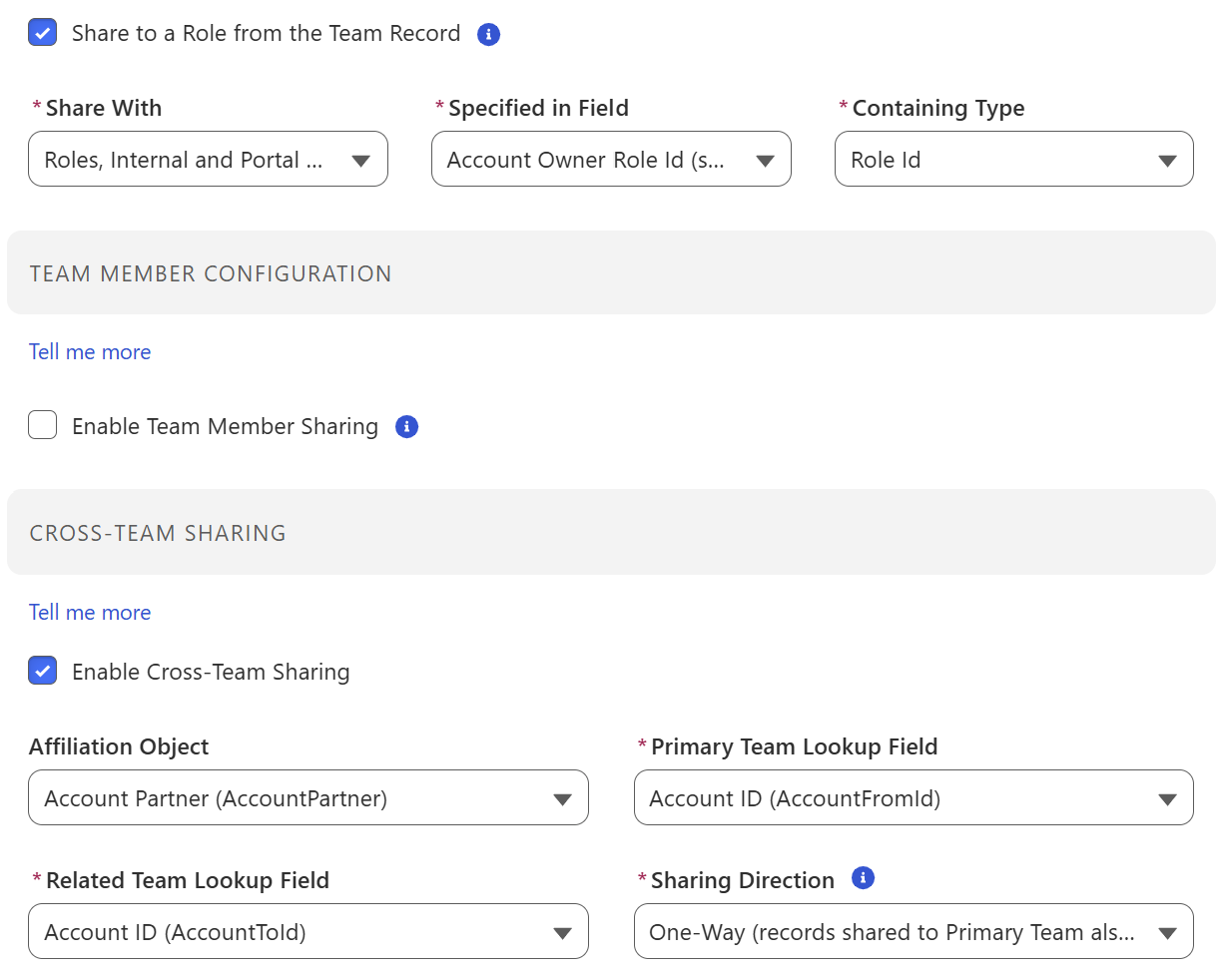
The example below shows a configuration for a team which shares to a role on the team record, does not use team member records but models associations between teams through the team affiliation object. In this example, teams with team affiliations records with this team set as primary will include the team role of related teams in these affiliation records.
Conditions
Each section of a Team Mapping – Team Object, Team Member, and Cross-Team Sharing – has an optional Conditions setting. When set, FormulaShare applies the condition as a filter when querying records for that section, so only records matching the condition contribute to group membership.
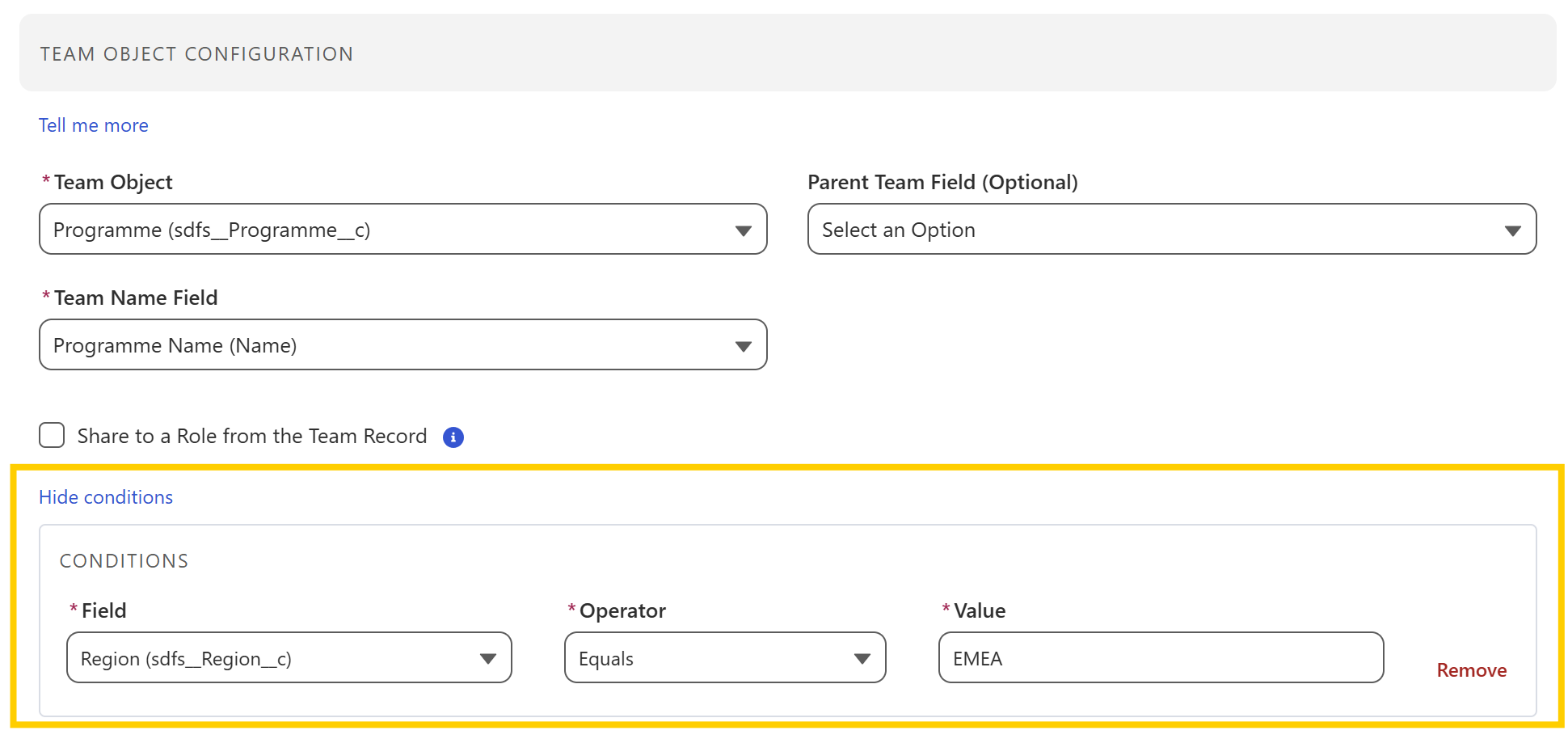
Each condition has three parts:
- Field – A field on the relevant object. The list includes text, number, picklist, checkbox, and date fields.
- Operator – One of: Equals, Not Equals, Is Blank, Is Not Blank. The value input is shown only when Equals or Not Equals is selected.
- Value – The value to compare against (for Equals and Not Equals only).
For example, setting a Team Object condition of Status__c | Equals | Active means FormulaShare will only create and maintain groups for team records where Status__c is Active. Team records that do not match the condition are ignored – no group is created for them, and any existing group for a non-matching record will be deleted during the next batch reassessment.
Conditions apply equally during batch reassessment and real-time trigger processing. A trigger event for a team member record whose team does not match the Team Object condition will be skipped.
Using Conditions to exclude Team, Team Member and Team Affiliation records can improve performance of batch and real-time operations by reducing the scope of data queried, processed and created by FormulaShare.
To add a condition, click the Add conditions link at the bottom of the relevant section. To modify an existing condition, click Edit conditions. To remove it entirely, click Remove within the filter panel.
Related Articles: