
FORMULASHARE ENTERPRISE / UNLIMITED ONLY
FormulaShare supports sharing records to teams defined in your Salesforce data model. Each team is represented by a public group managed automatically by FormulaShare, and sharing rules grant access to records by associating them with the right team group.
This page explains how to set up a FormulaShare Rule to share to teams. For full details on how team groups are managed, see the Team and User Match Sharing section.
Prerequisites
Before creating a Teams sharing rule, you need:
- A Team Mapping configured in the Team and User Groups page of FormulaShare Setup, describing the objects and fields that make up your teams data model. The standard FormulaShare Teams mapping is included out of the box if you want to use the
sdfs__Team__cobject that comes with the package. - A field on your shared object (or a related object) containing a value which identifies which team should receive access. The simplest option is a lookup field to the team object – FormulaShare reads the record Id to identify the team. Alternatively, a text or formula field containing the team's name is supported, provided the mapping has a Team Name field configured.
- Groups must exist for FormulaShare to apply sharing. Groups are created and populated during batch reassessment, which runs once per day by default, or can be triggered on demand from the Team and User Groups page.
See Team Mappings Data Model for details on configuring mappings, including the optional role-based membership configuration which allows Salesforce roles (and their subordinates) to be included in team groups without requiring individual team member records.
Creating the Rule
Open the FormulaShare Rules tab and click New Rule. Set the object to share and the location of the controlling field as you would for any other rule. Then in the Share With section, select Teams.
Three additional fields appear:
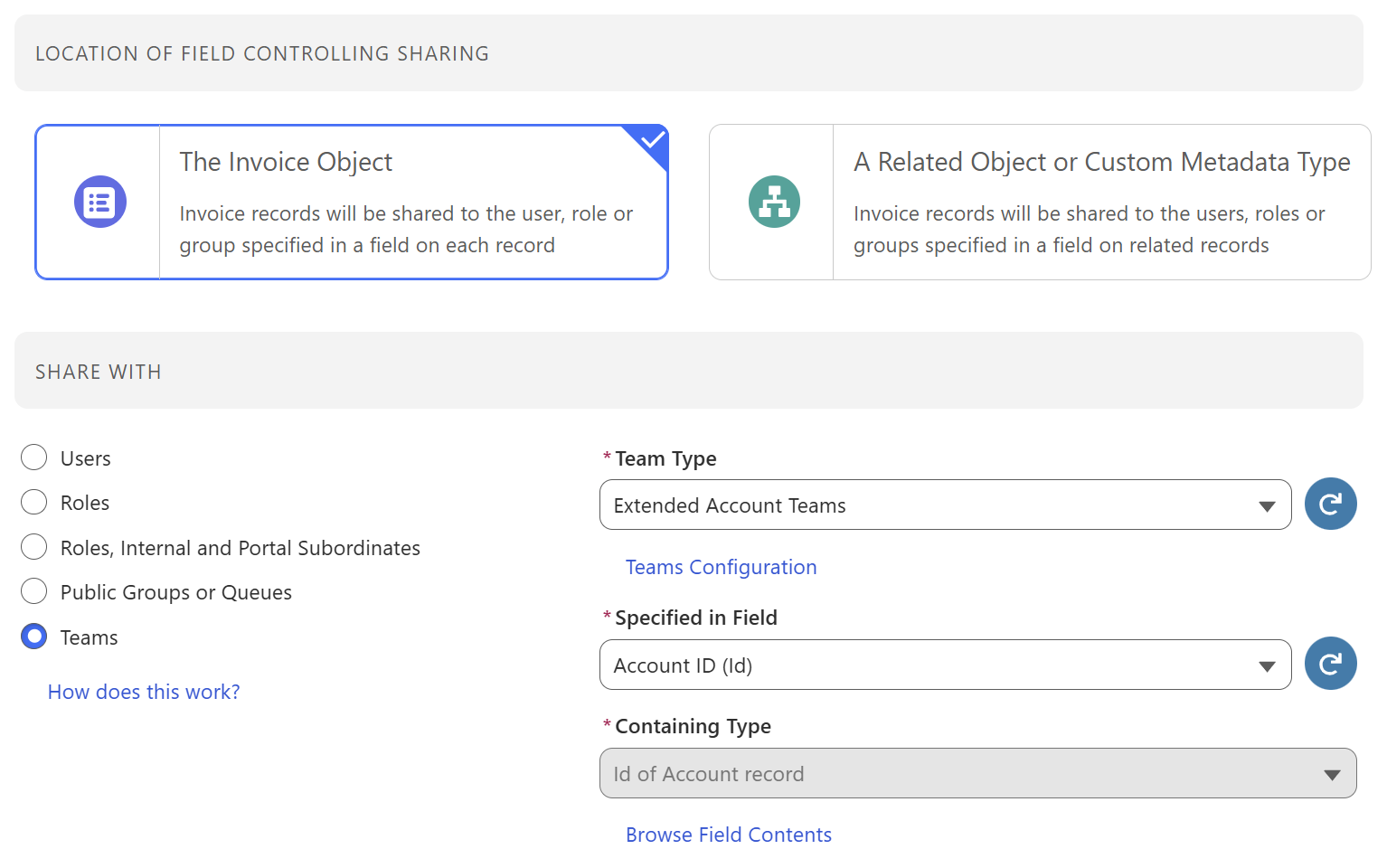
Team Type
Select the Team Mapping which describes the data model your rule will use. The dropdown lists all active Team Mappings configured in your org. The mapping tells FormulaShare which team object is related to the shared object, and how this corresponds to users, roles and groups to be granted access.
Specified in Field
Select the field whose value identifies the team for each record. Two categories of field are shown:
- Lookup to Team – a lookup field on the controlling object pointing directly to the team object.
- Text / Text Formula – a text field or formula field returning text.
If the controlling object is itself the team object, the Id field is also available.
Containing Type
Controls how the field value is interpreted to locate the team's group:
- Id of [Team] record – the field contains the Salesforce record Id of the team. Always the only option when a lookup or Id field is selected.
- Text matching the [name field] on [Team] record – the field contains the team's name value, matched against the group's name label. Only available when the selected mapping has a Team Name field configured and a text or formula field is selected above.
See How Team Sharing Rules Work for full details on how group matching works for each containing type.
Set the Access Level (Read or Edit) and, for custom objects, the Sharing Reason as you would for any other rule.
How Sharing Is Applied
When FormulaShare assesses a record against a Teams rule, it reads the field value from the Specified in Field and uses the Containing Type to locate the matching group, either by matching the value against the team record Id or against the team's name label (Containing Type = Name). It then adds a share record granting the configured access level to that group.
Scalability
For orgs where large volumes of groups are managed, it is recommended to match based on Id to benefit from the indexes applied by Salesforce to this field.
If the group doesn't exist yet (for example, because a new team record was just created and groups haven't been reassessed), no sharing is applied until the next group sync.
For a full explanation of how teams, hierarchies, affiliations, and role-based membership affect who receives access, see How Team Sharing Rules Work.
Real-Time Sharing
Teams rules benefit from FormulaShare's standard real-time sharing mechanisms. For standard rules and cross-object rules where real time sharing is configured, changes to the field value on a record will immediately update which team group the record is shared with.
Changes to the group's membership (i.e. which users are in a team, or which roles are configured on team or team member records) are handled separately through the team trigger mechanism. See Trigger Setup for Group Updates for details.
Related Articles: