
FORMULASHARE ENTERPRISE / UNLIMITED ONLY
This page explains how FormulaShare interprets Team sharing rules and applies access to records. It covers how groups are identified from field values on shared records, and how hierarchy and affiliation configurations affect which users receive access.
For practical illustrations of these concepts, see Team Sharing Examples.
The Core Mechanism
When FormulaShare processes a record subject to a Teams rule, it follows these steps:
- Reads the field value - The field specified in the rule is read from the shared record (or a related record for cross-object rules). This value is the team identifier.
- Constructs the group Developer Name - Using the Team Mapping associated with the rule, FormulaShare constructs the Developer Name of the public group expected to represent that team. The name is built as
<Group Name Prefix>_<sanitised identifier>where the identifier is the team's name, external ID, or Salesforce ID depending on the mapping's Group Name Suffix setting. - Shares the record to the group - FormulaShare adds a share record granting the configured access level to the public group.
The group itself may include users directly (direct team members), role-based members (see below), and, if hierarchy or affiliations are configured, other nested groups. Salesforce resolves group membership at access check time, so all users in the group and any nested groups receive access.
Field Values and Group Identification
The field on the shared record (or a record related to the shared record through a series of lookups) should contain a value which identifies the relevant team.
The type of value is determined by the Containing Type setting on the FormulaShare rule. If the selected field is a lookup to the team object, Containing Type is automatically set to Record Id and cannot be changed. For text and formula fields you can choose:
- Team Name – the field should contain the value of the team's name field (as configured on the Team Mapping). Matched against the group's Name (display label), which holds the full sanitised team name.
- Id of Team record – the field should contain the 15- or 18-character Salesforce record Id of the team. Matched against the group's Developer Name (
<Prefix>_<Id18>), constructed directly from the field value.
15 vs 18-character Ids: FormulaShare normalises both 15- and 18-character Id formats to 18 characters before matching, so either format works in the field regardless of how it was stored.
If the field value does not match any existing group (for example, a team name is misspelled or a new team has been created but groups haven't been reassessed yet), no sharing is applied for that record until groups are next synchronised.
Team name uniqueness for name-based matching: When using Containing Type = Team Name, FormulaShare matches the field value against the group Name (label). If two teams produce the same sanitised name within a mapping, FormulaShare cannot determine which team is intended and will log an error rather than applying sharing.
This is most likely to occur either when duplicate team names have accidently been used, or when very long team names are used where the first 30 characters are identical. The latter scenario relates to the sanitisation necessary to allow storing the team name in the public group's label, which is restricted to 40 characters.
To avoid this:
- Ensure all team names within a mapping are unique, and that the leading characters of each name clearly distinguish the team.
- If uniqueness cannot be guaranteed, use a lookup field or store team record ids in the sharing field and set Containing Type to Id. Id-based matching is always unambiguous.
Direct Team Membership
The most basic case: a user is a member of the team via a Team Member junction record. FormulaShare adds that user as a direct member of the team's public group during group synchronisation.
When a record is shared to the team's group, all direct members of that group receive the access defined in the rule.
Role-Based Membership
FormulaShare can include Salesforce roles – and optionally their subordinates – directly in a team's public group. This allows you to share records with an entire role hierarchy through team sharing rules without needing individual team member records for each user.
How It Works
Salesforce natively supports adding roles to public groups. When a role is added to a group, Salesforce uses a system Group record with a type of Role, RoleAndSubordinatesInternal, or RoleAndSubordinates. FormulaShare resolves the configured role field value to the appropriate system group and adds it as a member of the team's public group via a GroupMember record.
Team-Level Role
When the Team Mapping has a Team Role Field API Name configured, FormulaShare reads that field from each team record and adds the corresponding role system group to the team's public group. Every user in the configured role (and its subordinates, if the selected scope includes them) will receive access to records shared with that team.
The Team Role Field Type setting controls whether the field contains a role DeveloperName (the API-style name you see in Salesforce Setup) or a Salesforce UserRole record Id.
Team Member-Level Role
When the Team Mapping has a Team Member Role Field API Name configured, FormulaShare reads that field from each team member record. Each distinct role value across all team member records for a given team is added to that team's public group.
This is useful when different team members hold different roles and you want each member's role to be included in the group – for example, a team member might specify a role that grants their manager's access level.
Role Scope Options
Both the team-level and member-level role configurations include a Share With setting which controls which users are included:
- Roles (Salesforce group type
Role) – only users directly assigned to that role. - Roles and Internal Subordinates (
RoleAndSubordinatesInternal) – the role and all internal (non-portal) roles below it. - Roles, Internal and Portal Subordinates (
RoleAndSubordinates) – the role and all subordinates including portal user roles.
Roles and Affiliations
Role-based members propagate through team affiliations in the same way that direct user members do. If teams are affiliated and sharing direction includes it, the role system groups from affiliated teams are included in each team's group.
Team Member Object is Optional with Team-Level Roles
When a team-level role is configured and no Team Member Object is set, the mapping runs in role-only mode. In this mode, the group for each team is populated from the role field value alone – no team member records are needed. Batch processing optimises this by restricting team queries to records where the role field is non-null.
Hierarchy: Cascading Access Across Parent and Child Teams
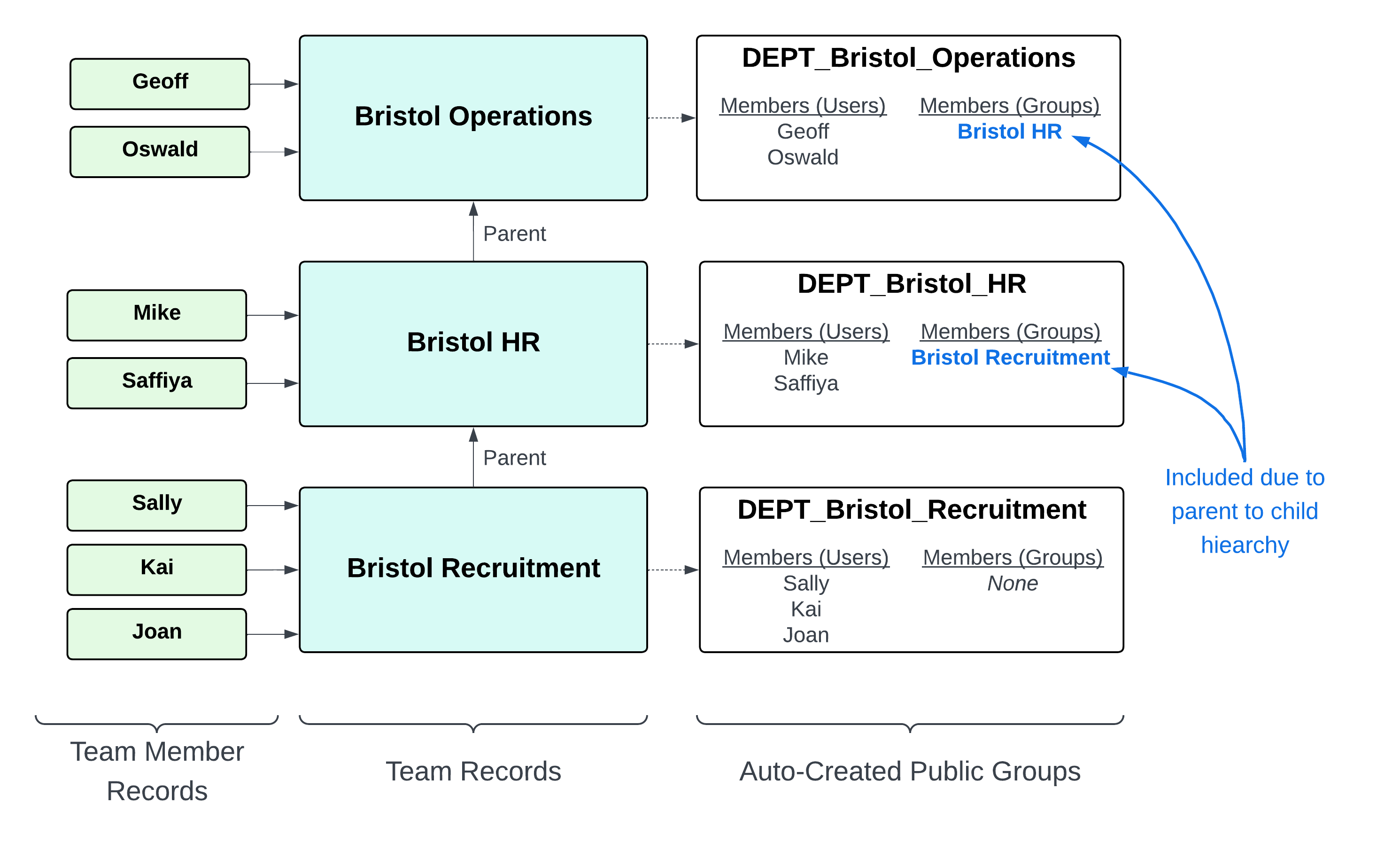
If the Team Mapping has a Parent Team Field configured, FormulaShare nests team groups within each other to model the hierarchy. The direction of nesting is controlled by Parent Hierarchy Sharing:
Parent to Child (default)
The child team's public group is added as a member (i.e. nested inside) the parent team's public group. This means:
- Sharing a record with a parent team grants access to all users in that parent team, and all users in any child teams below it in the hierarchy.
- Sharing a record with a child team grants access only to the direct members of that child team (and its own children if it has any).
This is a similar concept to the Salesforce mechanism to share to Roles and Subordinates, and is suitable as a straightforward way to share records with all teams in a regional or functional grouping.
Child to Parent
The parent team's public group is nested inside each child team's public group. This means:
- Sharing a record with a child team grants access to the members of that child team and all users in parent teams above it.
- Sharing a record with a parent team grants access only to the direct members of that parent team's group.
This is a similar concept to the Grant Access Using Hierarchies option Salesforce provides for the standard role hierarchy, and suits scenarios where records shared to a team should also be visible to regional or divisional teams.
None
No hierarchy nesting is applied. Each team's group contains only its direct members, regardless of parent team relationships.
Team Affiliations: Sharing Across Related Teams
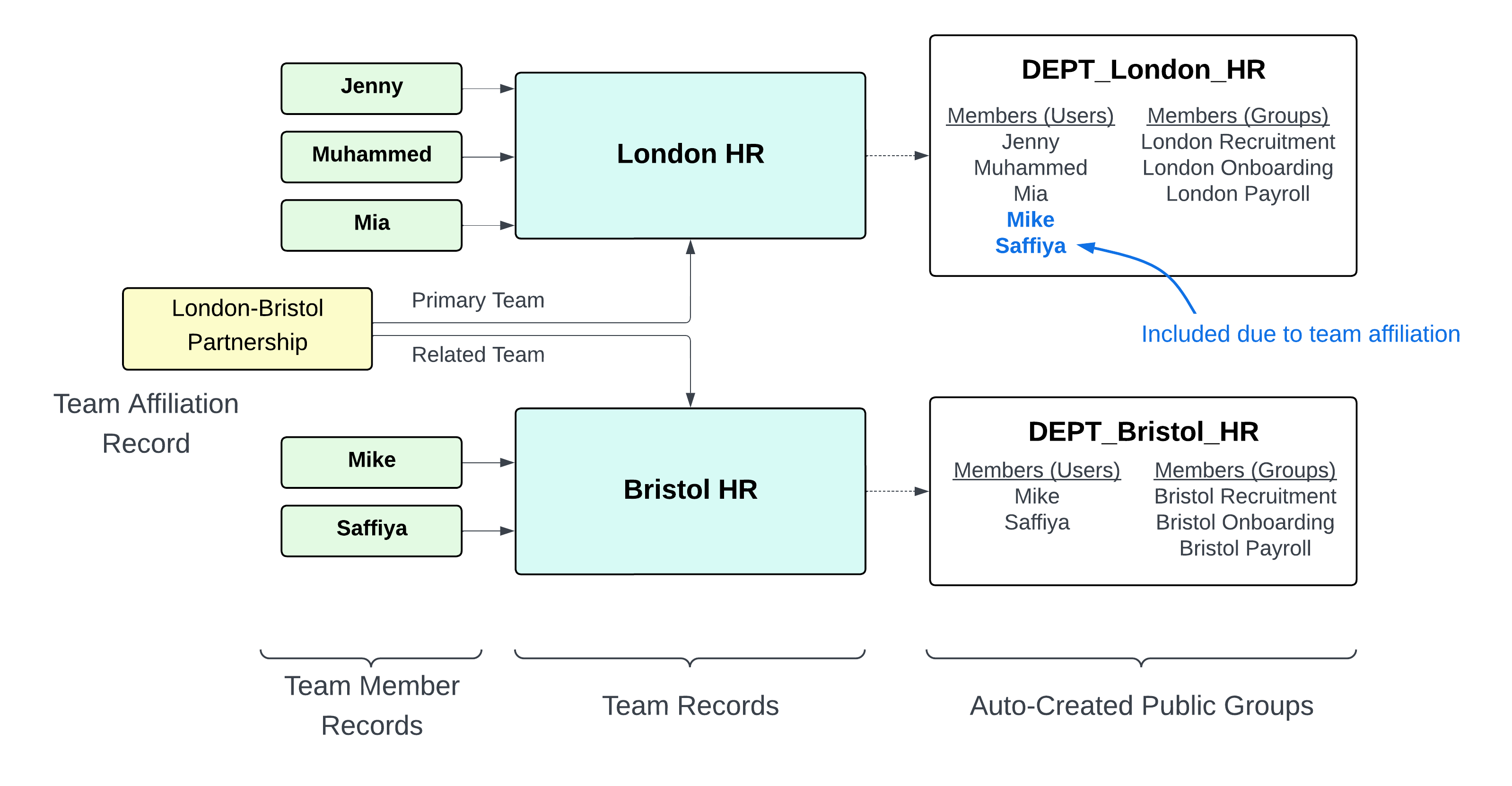
If the Team Mapping has a Team Affiliation Object configured, FormulaShare adds cross-team membership based on affiliation records. Unlike hierarchy nesting (which uses group-in-group), affiliations copy the direct users and role system groups of one team into the other team's group. This avoids circular dependency errors which would occur if two teams share parent teams or are symmetrically associated.
One-Way
The direct members and role system groups of Related Team are added to Primary Team's public group. Sharing a record with Primary Team grants access to Primary Team's direct members and Related Team's direct members. Sharing with Related Team grants access only to Related Team's direct members.
Symmetrical
The direct members and role system groups of each team are added to the other team's public group. Sharing a record with either team grants access to the direct members of both teams.
Note that affiliation membership reflects only the direct members and direct role system groups of the associated team – it does not cascade through the associated team's hierarchy or further affiliations.
How Groups Are Named
The naming convention depends on the Group Name Suffix setting in the Team Mapping.
Group Name Suffix = Team Name
When groups are named using the team's name field, FormulaShare sets two distinct values on each group:
- Developer Name (API name):
<Prefix>_<Id18>– e.g.SALES_a0GO300000DnlzbMAX - Name (display label):
<Prefix>_<SanitisedTeamName>– e.g.SALES_North_America_Sales
The Developer Name uses the 18-character Salesforce record Id of the team together with the prefix associated with the team mapping. The sanitised team name is retained in the Name (label) field for human readability in Salesforce Setup and for name-based matching. Both fields are subject to the 40-character Salesforce limit, and Name (label) will be truncated if necessary.
Group Name Suffix = Id or External ID
When groups are named using the team's Salesforce Id or external ID field value:
- Developer Name (API name):
<Prefix>_<SanitisedIdentifier>– e.g.SALES_a0GO300000Dnlzb - Name (display label): same as Developer Name – e.g.
SALES_a0GO300000Dnlzb
Important: These groups are fully managed by FormulaShare. Do not manually add or remove members, or change the group Developer Name or Name. Manual changes will be overwritten during the next batch reassessment.
When Groups Don't Exist Yet
If a sharing rule is assessed and the expected group does not yet exist, no sharing is applied. Groups are created and populated during batch reassessment (which runs once per day by default) or can be triggered on demand from the Team and User Groups page in FormulaShare Setup.
If real-time trigger handling is configured, groups are created or updated immediately when team member records are inserted, updated, or deleted. New team records themselves (without any members or role values) will not produce a group.
Related Articles: