
FORMULASHARE ENTERPRISE / UNLIMITED ONLY
The teams functionality is designed to be flexible to accomodate a wide range of organisational hierarchies, matrices and partnership structures which can't be modelled effectively with native sharing.
These examples illustrate some typical ways organisations can utilise teams and configure FormulaShare rules to control record access.
There are many other ways these features can be applied to create powerful bespoke sharing models. Contact Cloud Sundial Support if you'd like to explore around what's possible to meet your requirements or adapt to your existing data model.
Example 1: Department Teams
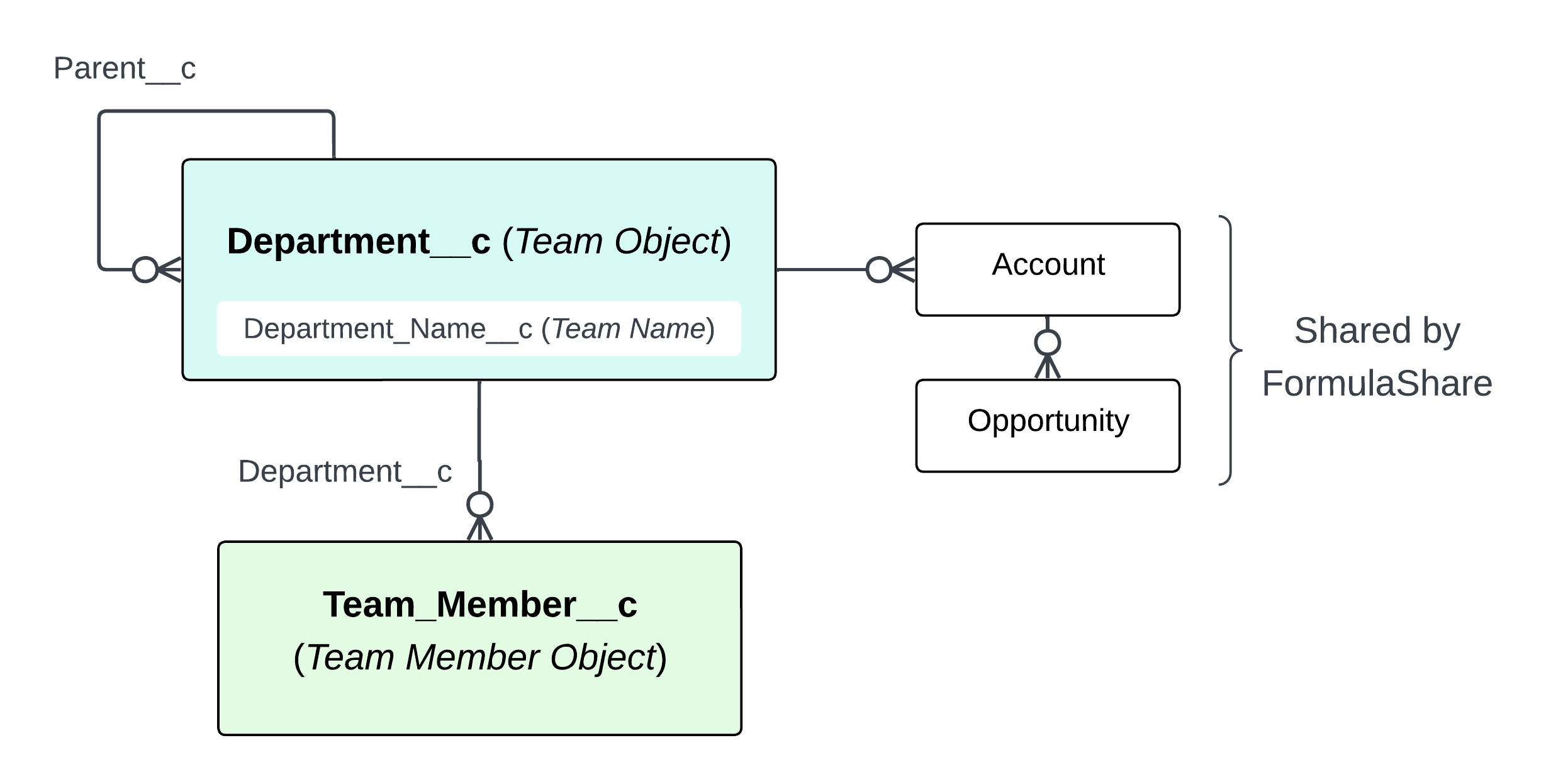
Scenario: A company organises its users into departments. Accounts and their child Opportunities should be visible to everyone in the relevant department, and managers of a department should automatically see the records belonging to their sub-departments.
Data model:
Department__cis the Team Object, withDepartment_Name__cas the team name field and aParent__cself-lookup to model the department hierarchy.Team_Member__cis the Team Member junction object, with aDepartment__clookup to the department and a standard user lookup.- Each
Accountholds a lookup toDepartment__cidentifying which department owns it. Opportunities inherit access through Salesforce's standard Account hierarchy.
Configuration: A single Team Mapping points to Department__c and Team_Member__c, with Parent__c set as the Parent Team Field and hierarchy direction set to Parent to Child. A FormulaShare rule on Account shares each record to the department identified by its lookup field.
What this enables: Any user who is a team member of a department automatically sees all accounts and opportunities assigned to that department. Because hierarchy is set to Parent to Child, a manager whose users are members of a parent department also sees records belonging to all sub-departments below it – without any additional rules or manual sharing.
Example 2: Administrative Divisions (Public Sector)
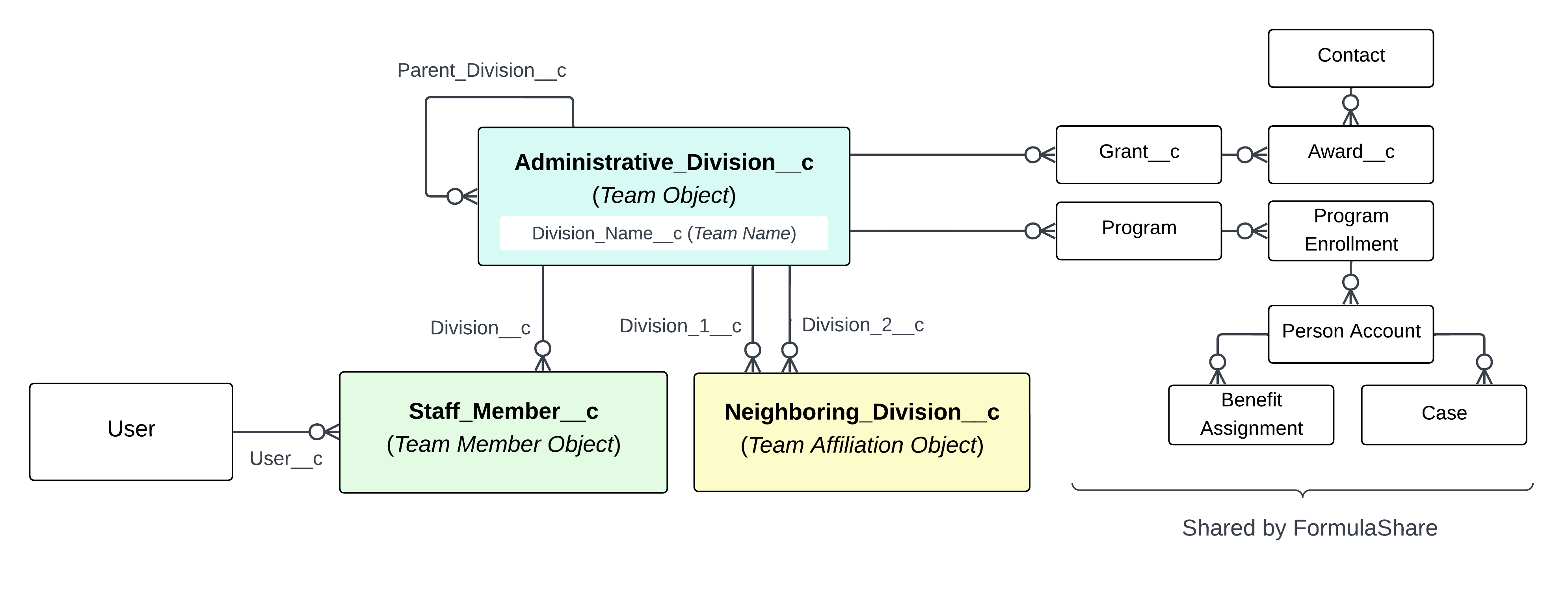
Scenario: A public sector organisation manages grants, programmes, and citizen records across administrative divisions (municipalities, counties, and states). Staff belong to a division, and neighbouring divisions often need mutual access to shared citizens and cases. The hierarchy means that county-level staff should be able to see records belonging to the municipalities within their county, and so on up to state level.
Data model:
Administrative_Division__cis the Team Object, withDivision_Name__cas the team name field andParent_Division__cas the self-lookup for the three-level hierarchy.Staff_Member__cis the Team Member junction object, linking aUserto a division viaUser__candDivision__clookups.Neighboring_Division__cis the Team Affiliation Object, withDivision_1__candDivision_2__clookups to capture symmetrical cross-division relationships.- Shared objects include
Grant__c,Program, and a rich citizen data model (Person Account,Program_Enrollment,Award__c,Benefit_Assignment,Case,Contact).
Configuration: A Team Mapping is configured with Administrative_Division__c as the Team Object, Staff_Member__c as the Team Member Object, Parent_Division__c as the Parent Team Field (hierarchy direction: Parent to Child), and Neighboring_Division__c as the Team Affiliation Object with symmetrical sharing direction. FormulaShare rules are created for each shared object, pointing to the lookup or text field that identifies the responsible division.
What this enables: Staff automatically see records belonging to their own division, all child divisions beneath them in the hierarchy, and any neighbouring divisions linked by an affiliation record. This removes the need for manual sharing across dozens of object types as staff move between divisions or as the divisional structure evolves.
Example 3: Account Partnerships (B2B with Partner Community)
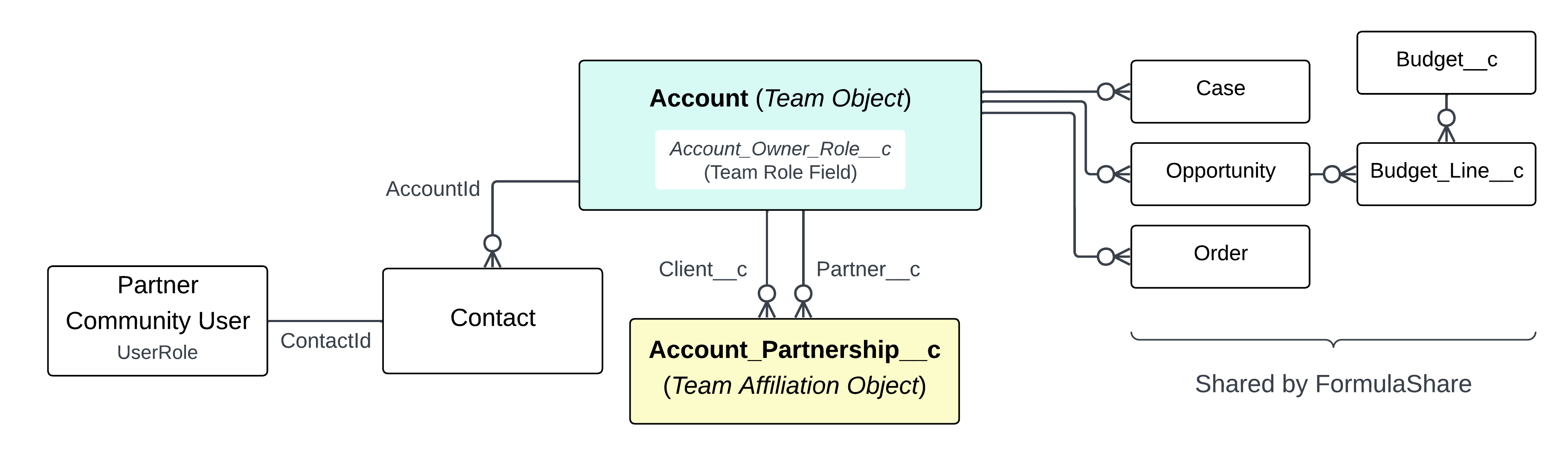
Scenario: A B2B company manages its commercial relationships through Accounts. Internal account teams are defined by the Salesforce role assigned to each account's owner, while partner companies who collaborate on accounts need access to the same cases, opportunities, and financial records. Partner community users (external users with portal access) are linked to their company account via Contact records.
Data model:
Accountis the Team Object, withAccount_Owner_Role__cas the Team Role Field – a field that holds the role of the account owner.- There is no separate team member object. Access for internal users flows entirely from the role field on each account.
Account_Partnership__cis the Team Affiliation Object, withClient__candPartner__clookups to the two participating accounts. This represents a formal partnership between a client account and a partner account.- Partner community users are linked to their account via
Contact.AccountIdand the portalUserRole, allowing FormulaShare to include them through the role-based mechanism. - Shared objects include
Case,Opportunity,Order,Budget__c, andBudget_Line__c.
Configuration: A Team Mapping is configured with Account as the Team Object, no Team Member Object, and Account_Owner_Role__c set as the Team Role Field (with scope set to Roles, Internal and Portal Subordinates to include partner community users). Account_Partnership__c is set as the Team Affiliation Object with symmetrical sharing direction. FormulaShare rules on each shared object point to the Account lookup field.
What this enables: The entire account team – determined by the role hierarchy beneath the account owner's role – automatically has access to all records related to that account. When a partnership exists between two accounts, users associated with the partner account also gain access to the client's records and vice versa. This covers both internal sales and service staff and external partner community users without any manual sharing or custom code.
Example 4: Salesforce Account Teams and Default Teams
Scenario: A company already uses Salesforce's standard Account Teams to track which users work on each account, and also allows users to configure their own Default Account Teams as a starting point for new accounts. The goal is to share records related to each account – such as cases, opportunities, or custom objects – with the relevant account team members automatically, and to support users whose default teams should similarly drive sharing.
Data model:
For current account team members:
Accountis the Team Object, usingAccount Name (Name)as the team name field.AccountTeamMemberis the standard Salesforce Team Member Object, withAccountIdas the Team Lookup Field andUserIdas the User Lookup Field.- Shared objects hold a lookup to
Accountidentifying which account's team should receive access.
For a user's default team members:
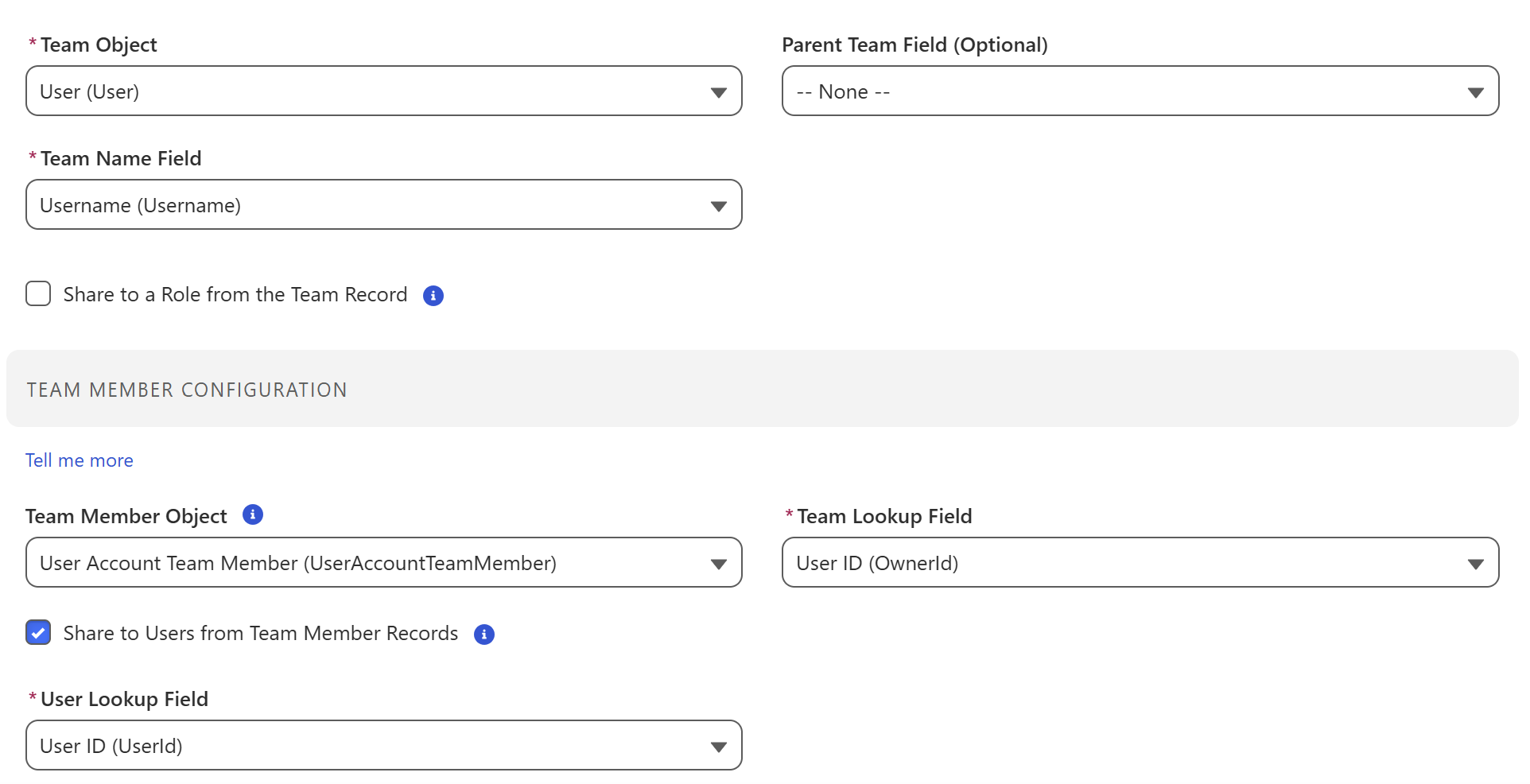
Useris the Team Object, usingUsernameas the team name field. Each user's record represents that user's personal default team.UserAccountTeamMemberis the standard object storing default team member records, withOwnerIdas the Team Lookup Field (linking to the user record) andUserIdas the User Lookup Field.
Configuration:
For current account team members, a Team Mapping is configured with Account as the Team Object, AccountTeamMember as the Team Member Object, AccountId as the Team Lookup Field, and Share to Users from Team Member Records enabled with UserId as the User Lookup Field. FormulaShare rules on the relevant objects point to their Account lookup field.
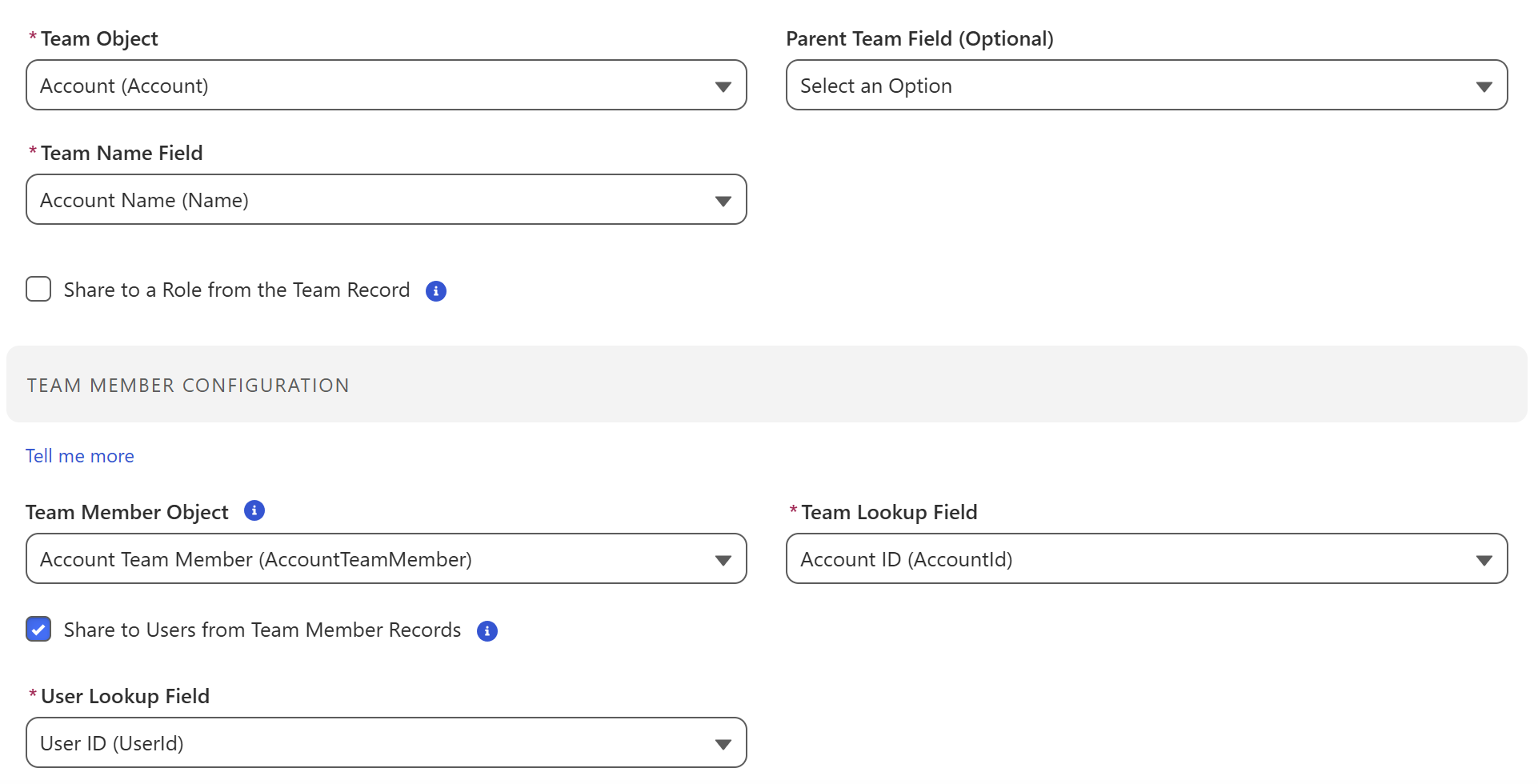
For default team members, a separate Team Mapping is configured with User as the Team Object, UserAccountTeamMember as the Team Member Object, OwnerId as the Team Lookup Field, and Share to Users from Team Member Records enabled with UserId as the User Lookup Field. Rules reference a field on the shared object that identifies the relevant user (e.g. an owner or assigned-user lookup).
What this enables: Records related to an account are automatically shared with every current member of that account's team. For default teams, each user's pre-configured team members gain access to records assigned to or owned by that user. Both approaches eliminate the need to maintain sharing manually as team membership changes, and work alongside any existing account team processes already in place.
Note that while this example is centred on Account Teams, the same principles can be used with standard Opportunity or Case Teams.
Related Articles: