
FORMULASHARE ENTERPRISE / UNLIMITED ONLY
The "With a User field matching the record field" share-with option allows records to be shared with all users who have a specific field value on their User record. For example, you can share all records belonging to a particular region with every user whose Region field matches that region.
Rather than adding individual users directly to share records, FormulaShare manages a set of public groups – one per distinct field value – and shares records to those groups. Users are placed in the appropriate group based on their User field value.
How It Works
1. Rules reference a User field
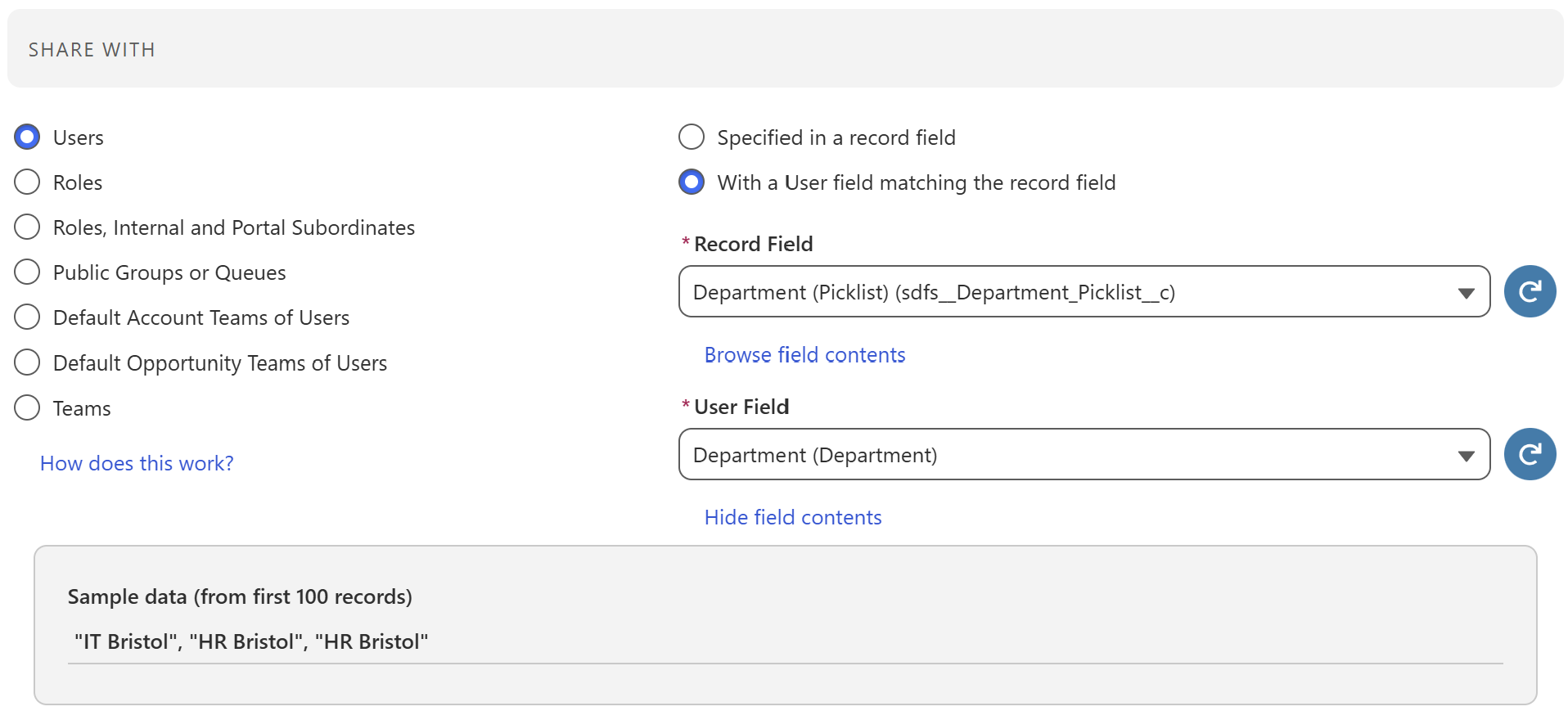
When creating a "With a User field matching the record field" rule, you select:
- The Record Field – the field on the shared object (or related object) whose value identifies the group of users to share with
- The User Field – the field on the User record that should be compared against the shared object's field value
Both fields can be a picklist, a lookup, a text field, or a formula returning a text value.
For example, you might share an Account to all users whose Region__c field matches the Account's Region__c field.
2. FormulaShare creates one public group per distinct User field value
For each distinct value found across all active Users for each configured User field, FormulaShare creates and maintains a public group. Groups are named using the FSUSR_ prefix:
FSUSR_<SanitisedFieldValue>_<SanitisedFieldName>
For example, if the User field is Region__c and the values in use are "North", "South", and "East", three groups would be created:
FSUSR_North_Region__cFSUSR_South_Region__cFSUSR_East_Region__c
3. Sharing applies the group to matching records
When FormulaShare assesses a record with this rule type, it reads the field value, constructs the expected group Developer Name, and shares the record to that group. All users in the group receive the access level defined in the rule.
Group Naming and Sanitisation
Group Developer Names are constructed as FSUSR_<SanitisedValue>_<SanitisedField> where:
- The
FSUSR_prefix identifies groups managed for this rule type. <SanitisedValue>is the User field value with spaces replaced by underscores and non-alphanumeric/underscore characters removed, truncated to fit within overall Developer Name limits.<SanitisedField>is a truncated form of the User field API name, sanitised in the same way.
This naming convention means that groups are tied to both the field name and the value, so groups for different User fields do not conflict.
Which Users Are Included
FormulaShare adds users to groups based on their current field value when group membership is assessed. Only active users are included. Users without a value set for the relevant User field are not added to any group.
Specifically, users with the following license types are included:
- Standard Salesforce users (
UserType = 'Standard') - Partner Community Users
- Users with the Customer Community Plus license
Users with Customer Community licenses are not included, as sharing using public groups or custom share records isn't supported for this license type.
Viewing and Managing User Field Groups
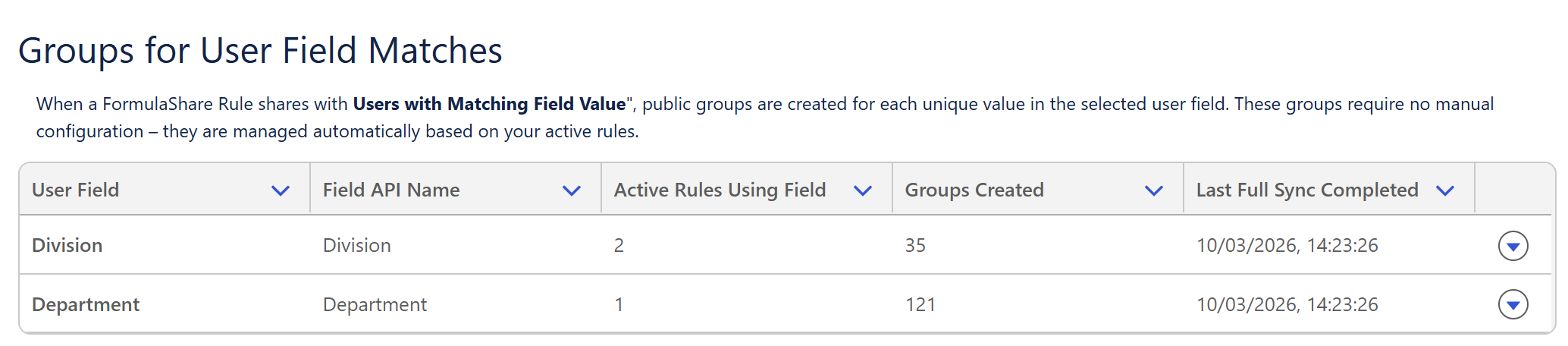
The Team and User Groups page in FormulaShare Setup shows a "Groups for User Field Matches" section with a table listing:
- The User field label and Field API Name
- The number of active rules using each field
- The number of public groups created for each field
- The date and time of the last full sync
From this page, you can trigger an immediate reassessment of groups for any individual User field on demand.
Permissions
Batch Job Running User
The FormulaShare batch jobs which assess and populate User Field groups query User records in user mode. The user account configured to run the scheduled batch must have read access to every User field referenced by an active "Users with Matching Field Value" rule.
If the batch running user lacks read access to a referenced User field due to field-level security, FormulaShare will be unable to read the field value for any user and the corresponding groups will not be created or populated. Records will not be shared via rules that depend on those groups. Check the batch job's debug log or FormulaShare log records if groups are not being created or sharing is not being applied as expected.
Users Initiating Trigger Operations
When the User trigger is enabled (see Trigger Setup for Group Updates), updates to User records cause FormulaShare to enqueue a queued job to update group membership for the affected user. The queued job queries User records in user mode, using the context of the user who triggered the update.
That user must have read access to the User fields referenced by active rules. If field-level security restricts access to those fields for the updating user's profile, the queued job will be unable to read the field values and the user's group membership may not be updated correctly.
This is most likely to affect administrators or automated processes which update these fields on User records. Ensure that the User fields referenced in active rules are visible to all profiles or permission sets that may perform these updates.
Important Notes
- Groups are managed by FormulaShare. Do not manually change the membership of
FSUSR_groups. Any manual changes will be overwritten during the next batch reassessment. - Groups are cleaned up automatically. If a User field value is no longer present on any active user (e.g. a value is retired), the corresponding group will be deleted during the next batch reassessment.
- New field values require a batch run or on-demand sync. If a new User field value is introduced, the corresponding group won't exist until the next batch reassessment or a manual sync is triggered from the setup page.
- Real-time updates require a User trigger. If the User Group Update Mode setting is configured in FormulaShare Settings and the User trigger is deployed, group membership is updated in real time when User records change. See Trigger Setup for Group Updates for setup instructions.
Related Articles: